
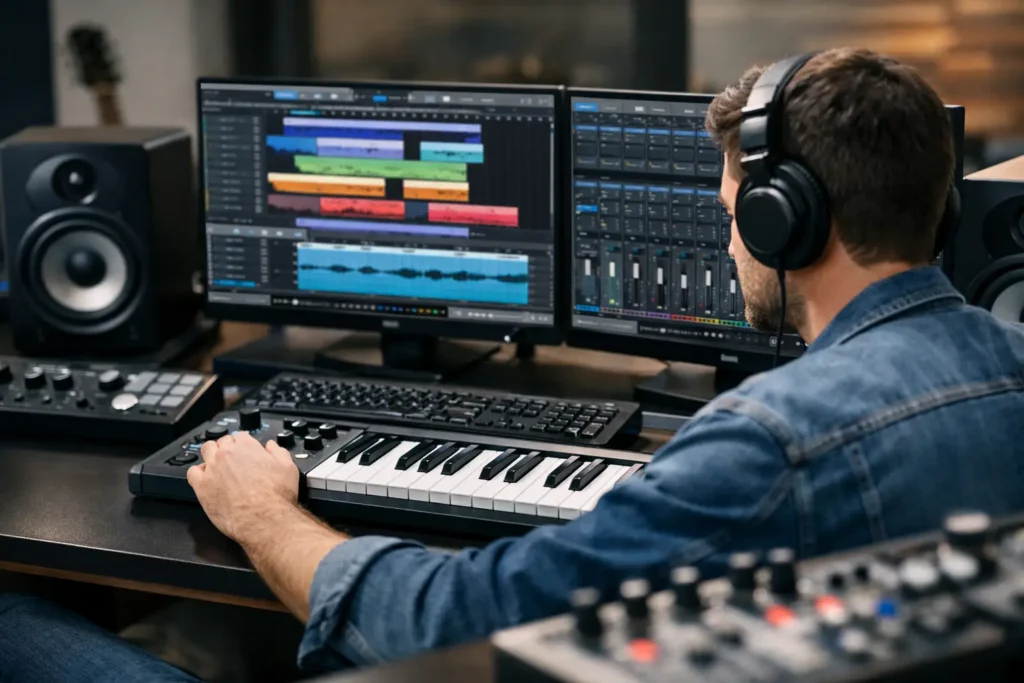
A DAW workflow is not about how many features sit behind menus. It is about what happens when a vocalist is ready for another take, the chorus needs to lift, or a mix decision has to happen before your ears get tired. This Studio One workflow review looks at the parts of PreSonus Studio One that can genuinely move a session forward, plus the habits and friction points that can still slow you down.
Studio One is built for people who want to write, record, edit, and mix without treating every phase like a separate technical project. Its strongest idea is simple: keep the tools close to the music. For a home-studio producer working alone, that can mean fewer interruptions between a rough idea and a usable production. For an engineer working with artists remotely or in the room, it can mean a session that stays organized while decisions are happening fast.
What Makes the Studio One Workflow Different
Studio One feels less like a collection of old studio conventions and more like a DAW designed around a modern production session. The Browser, Inspector, Arrange view, and Console are all intended to work together without requiring constant window hunting. You can drag an instrument, effect, sample, or routing option into place, then get back to listening.
That approach matters because production momentum is fragile. If creating a headphone send, loading a virtual instrument, or finding a favorite vocal chain takes five minutes, those small delays compound. Studio One reduces a number of these routine jobs to direct visual actions. Drag an effect onto a channel. Drag a sample into the timeline. Drag a bus or output assignment where it belongs. The learning curve is still real, but the logic is easier to see than in many older DAW designs.
The single-window layout is another major strength. Instead of spreading a session across a pile of floating windows, Studio One keeps the main production areas accessible from one workspace. That will feel efficient to producers who dislike screen clutter. It can feel dense at first, especially on a smaller laptop display, but learning how to show and hide panels quickly makes a real difference.
Studio One Workflow Review: Recording and Arrangement
Recording is where Studio One earns a lot of loyalty. Setting up audio tracks, selecting inputs, arming tracks, and monitoring takes very little ceremony once your audio interface is configured correctly. The track header gives you the controls you need without forcing you into another screen, and the Console is always nearby when you need to check gain staging, cue mixes, or routing.
For vocal production, the workflow is particularly practical. You can record multiple passes, create and manage takes, comp the strongest phrases, and keep the session moving. The details matter here: naming tracks, coloring key groups, and building a recording template before the artist arrives will have a bigger impact than any shortcut alone. Studio One gives you the tools, but it does not automatically make a disorganized session professional.
The Arranger Track and Scratch Pads are excellent examples of features that support actual songwriting decisions. The Arranger Track lets you label and reorder sections such as intro, verse, pre-chorus, and chorus. When an artist says, “Try the second chorus first,” you can test that idea without manually selecting and moving dozens of events. Scratch Pads let you try an alternate arrangement without destroying the version that was working.
This is not just convenient. It removes the fear of experimentation. Producers often keep a weak arrangement because they do not want to risk breaking a complicated session. Studio One makes it easier to test the better idea.
Editing Without Leaving the Creative Frame
Studio One’s editing tools are fast once you establish a few dependable commands. Slip editing, splitting, fading, quantizing, and moving events can happen directly in the Arrange view. The built-in audio tools are capable enough for most daily cleanup and timing work, while ARA support can make deeper pitch and timing correction feel more connected to the session.
The trade-off is that editing speed depends heavily on your personal configuration. A producer who relies on default shortcuts may get through basic work just fine. A producer editing dense vocals, live drums, or dialogue will benefit from customizing key commands, zoom behavior, and mouse tools. There is no prize for using a DAW exactly as it ships. The goal is to make repeat work predictable.
MIDI production is also well covered. Instruments, patterns, automation, and the Chord Track can support everything from quick beat building to detailed programming. The Chord Track can be useful for writers working through harmonic options, but it is not a substitute for musical judgment. Use it to test an idea or coordinate parts, not to let the software make every creative choice for you.
Mixing and Session Organization
A session starts to feel slow when the mix becomes difficult to read. Studio One gives you a clear Console, channel grouping, buses, VCAs, effects sends, and routing tools that are easy to access. The Browser also helps when you need to pull in a familiar effect or preset without digging through plugin folders.
The real advantage is consistency. If every song starts with a sensible structure – drums, bass, music, lead vocal, backgrounds, effects returns, mix bus – your attention stays on balance and tone instead of basic navigation. Templates are the practical answer. Build separate templates for songwriting, vocal recording, beat production, mixing, and live multitrack work. Do not force one giant “everything” template onto every project.
Track presets and FX chains can also save serious time, but they need discipline. A lead vocal chain that works for one singer may be wrong for the next singer, microphone, room, and genre. Save starting points, not permanent answers. Good workflow gets you to the first useful decision faster; it should not make decisions you have stopped listening to.
Studio One’s Project page can be valuable when you are preparing an EP or album. It encourages you to consider song-to-song level, sequencing, metadata, and final delivery as a connected stage rather than an afterthought. That is especially helpful for independent artists who finish songs one at a time and only later discover that the releases do not feel cohesive.
Where Studio One Can Slow You Down
No Studio One workflow review is useful if it pretends the software has no friction. First, Studio One rewards setup. Users who open a blank Song, start adding tracks, and figure out routing as they go can still create music, but they will not experience the program at its best. Templates, I/O configuration, external device mapping, folder structures, and naming conventions need attention early.
Second, the software’s flexibility can create option overload. There may be several valid ways to manage a task, especially with automation, routing, macros, and instrument setups. That is powerful for advanced users, but beginners can spend too long asking which method is “correct.” Usually, the correct method is the one that is clean, repeatable, and understandable when you reopen the song three weeks later.
Third, hardware problems do not disappear because a DAW has a friendly interface. Interface drivers, sample rate mismatches, monitor routing, MIDI clock, latency, and plugin compatibility can all interrupt a session. Studio One may reveal the issue clearly, but troubleshooting still depends on knowing how your computer, interface, and session settings relate to one another.
How to Make Studio One Work Faster for You
Start by creating one template for the work you do most often. Include your preferred sample rate, audio inputs, buses, effects returns, track colors, and basic routing. Keep it lean. A template loaded with 40 plugins is not efficient if your computer struggles before the first note is recorded.
Next, learn a small group of actions until they are automatic: creating tracks, opening the Browser, adding sends, splitting events, zooming, bouncing, and saving versions. You do not need to memorize every command. You need to stop pausing for the commands you use every day.
Finally, save versions deliberately. Before trying a radical arrangement, vocal edit, or mix direction, save a new version with a meaningful name. “Song Final Final 2” is not a version system. Name it for the decision: “Song – short intro,” “Song – vocal comp B,” or “Song – brighter mix.” When a collaborator asks to return to an earlier direction, you will know exactly where to go.
Studio One is a strong choice for producers and engineers who want a DAW that supports fast, visual, song-focused work. But software alone will not fix a workflow built on guesswork. If a routing problem, template, vocal comp, or mix process keeps costing you hours, a live one-on-one session with an OBEDIA engineer can turn that recurring roadblock into a repeatable process. The best workflow is the one that leaves you with more finished music and fewer unfinished technical battles.