
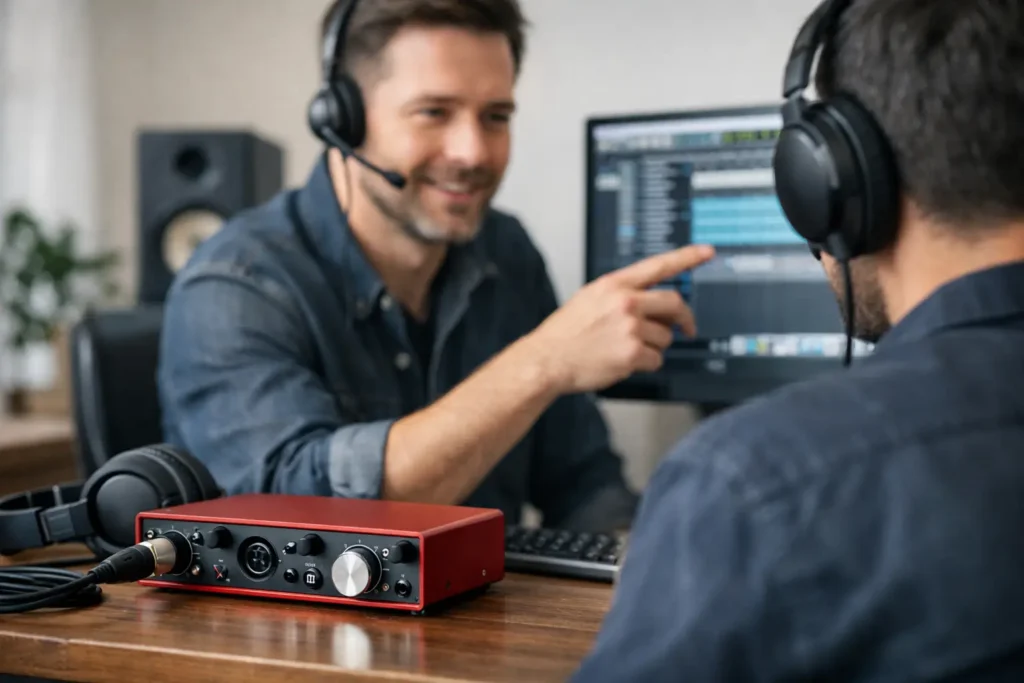
You know the feeling. You finally have time to record, you connect your interface, open your DAW, and something basic breaks. No input signal. No playback. Crackles at a 64 buffer. Headphones work but monitors do not. This is exactly where audio interface setup support stops being a nice extra and starts saving sessions, momentum, and money.
Most interface problems are not caused by one catastrophic failure. They come from a chain of small mismatches – driver settings, sample rate conflicts, clocking errors, bad routing, OS permissions, USB issues, DAW preferences, or simple gain staging mistakes. That is why random tutorials often do not help. They may explain one menu in one program on one system, but they cannot see your signal flow, your operating system, your interface control panel, and your DAW at the same time.
What audio interface setup support should actually solve
Good support does more than get sound to pass once. It should leave you with a working, repeatable setup you understand. That means your interface is recognized correctly by the computer, your inputs and outputs are mapped properly in the DAW, your monitor and headphone paths make sense, and your latency is low enough for the way you work.
That last part matters. A singer tracking vocals needs something different than a mix engineer working at high buffer settings with lots of plugins. A producer using virtual instruments may need tighter performance than someone recording voiceover. Real audio interface setup support should account for the job, not just the hardware.
The most common setup failures
The same problems show up again and again, even with good gear. Driver installation is a major one. On Windows, using the wrong driver type or letting the system default to a generic audio driver can create instability, high latency, or missing inputs. On Mac, class compliance can make some interfaces appear to work even when permissions, aggregate configurations, or DAW settings are still wrong.
Routing is another big failure point. Many users assume plugging in a microphone means the DAW will automatically know where to find it. It will not. The interface input may be active in the hardware panel but not enabled inside the DAW. Or the signal may be coming in on input 3 while the track is listening to input 1. If direct monitoring is enabled in one place and software monitoring is enabled in another, you may hear doubling or comb filtering and think the interface is defective.
Then there is the latency problem. People often chase low buffer settings without understanding the trade-off. Lower latency helps during tracking, but if your session is heavy with instruments and processing, the system may click, pop, or drop out. Raise the buffer too far and performance becomes sluggish. The right setting depends on the stage of production, your CPU load, and whether the interface offers reliable direct monitoring.
Audio interface setup support for real studio workflows
If your setup only works under perfect conditions, it is not actually set up. A proper support process should test your system the way you use it in real life. That includes recording a microphone, playing back through monitors, checking headphone mixes, testing MIDI timing if needed, and confirming that your DAW saves and reopens the configuration correctly.
This is where generic help usually falls short. It may tell you to “select the interface” in preferences, but it will not catch that your Windows sound settings are hijacking sample rate, that your Mac microphone permissions are blocking input, or that your interface mixer software is muting the DAW return. Those are real-world issues. They need real-world troubleshooting.
DAW setup is part of the interface setup
Your interface does not exist in isolation. Studio One, Pro Tools, Cubase, Logic Pro, and Ableton Live all handle audio device setup a little differently. Some are straightforward about I/O configuration. Others hide critical settings behind menus new users rarely check. If your audio interface is working at the system level but not inside the DAW, the problem is still part of setup.
This matters even more when templates, external gear, cue mixes, or multiple output paths are involved. A podcast user may need separate guest and host monitoring. A producer may want reamping or hardware inserts. A vocalist may need zero-latency monitoring plus reverb in headphones. The support has to connect hardware behavior to software workflow.
Not every issue is technical in the same way
Sometimes the problem is a broken cable. Sometimes it is a power management setting putting a USB port to sleep. Sometimes it is confusion about mic level versus instrument level. Sometimes the interface is fine and the real issue is that phantom power is off, the wrong output pair is feeding the speakers, or the DAW track is record-enabled but the input monitoring path is not.
That is why efficient support starts with signal flow, not guesses. Where is the source? Where is it entering the interface? What does the hardware meter show? What does the DAW meter show? Where is playback returning? Which output is feeding your monitors and headphones? Once those answers are clear, most problems get smaller very fast.
What to expect from competent audio interface setup support
You should expect someone to look at the whole system, not just recite manual pages. That includes your computer, operating system, connection type, interface software, DAW audio preferences, I/O setup, and intended use. If support skips any of those layers, you can end up with a setup that technically works but is still frustrating to use.
You should also expect clear decisions. Should you run the manufacturer’s dedicated driver or class compliant mode? Should your interface be the system default audio device or only the DAW device? Is direct monitoring the better choice for tracking vocals, or is software monitoring acceptable on your system? Should you work at 44.1, 48, or a higher sample rate for your actual projects? Good support answers those questions based on your workflow, not internet folklore.
One more thing matters: speed. If you have spent three nights comparing forum threads and reinstalling drivers, the value of support is not just technical accuracy. It is getting you unstuck before frustration turns into lost creative time. That is why live, one-on-one help tends to beat passive content for setup issues. Someone can see what is wrong in the moment and correct it while you are at the machine.
When DIY is enough, and when it is not
Some setup problems are worth fixing on your own. If you forgot to arm a track, selected the wrong input, or left the monitor knob down, you do not need a support session. Basic checks are part of owning a studio. You should know how to verify cables, power, input selection, and output assignment.
But there is a point where DIY stops being efficient. If the interface appears in the OS but not in the DAW, if performance changes unpredictably between sessions, if routing works in one app and fails in another, or if you are trying to integrate multiple pieces of hardware while maintaining low-latency tracking, expert help becomes the faster path. That is not weakness. That is good studio math.
For many users, the real issue is not one broken setting. It is a lack of confidence in the system. Every session begins with doubt: Will this work today? Proper setup support removes that doubt. It gives you a repeatable baseline you can trust.
A setup that supports your music, not just your interface
The goal is not to win a technical argument or memorize every control panel page. The goal is to create a recording environment where ideas move quickly. Your interface should disappear into the workflow. You plug in, arm the track, hear what you need to hear, and get back to producing.
That is the difference between random troubleshooting and real support. Real support leaves you with a system that fits your work, whether you are recording vocals, building beats, tracking guitars, editing podcasts, or mixing client sessions. If you need that level of help, working with a real engineer in a live session can save days of trial and error. OBEDIA has built its entire approach around that reality.
If your interface keeps stealing studio time, do not keep treating it like a mystery. A working setup is not luck. It is a process, and once it is dialed in, everything downstream gets easier.