
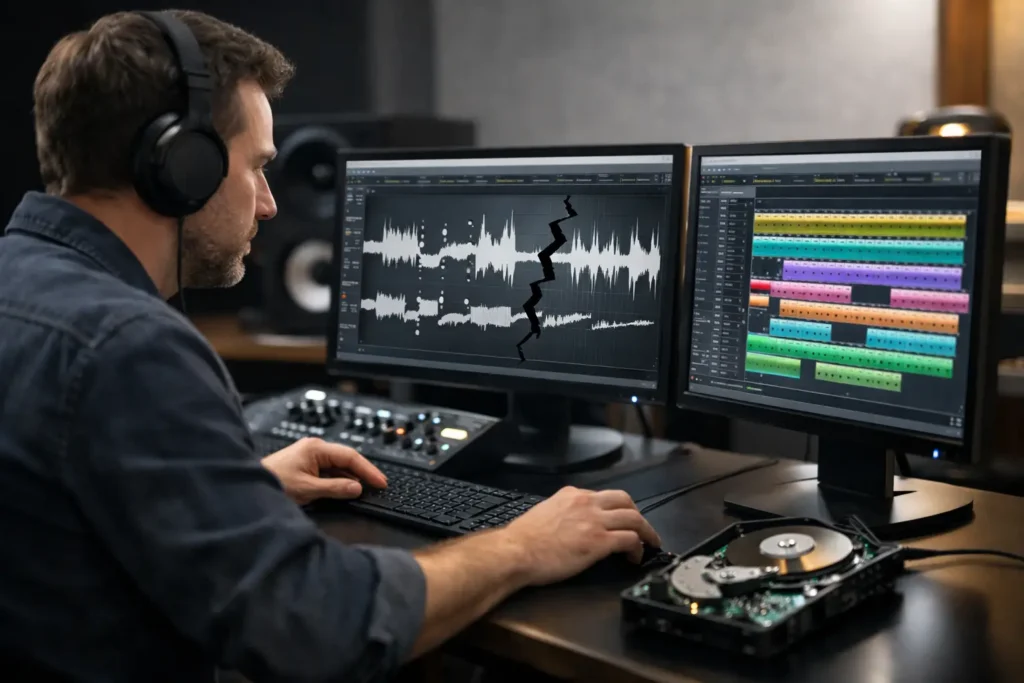
A session that suddenly will not open can stop a record cold. You may see an error about missing media, an unsupported project version, a plug-in crash, or a session that opens with empty tracks and no audio. So, can experts repair corrupted sessions? Often, yes. But the honest answer depends on what is actually damaged: the project file, the audio files, the plug-ins, the drive, or the path information that tells the DAW where everything lives.
The good news is that many sessions called “corrupted” are not truly destroyed. They are broken in a way that an experienced engineer can identify, isolate, and work around. The fastest path is not randomly reinstalling software or repeatedly trying to force the same session open. It is protecting the original file and diagnosing the failure in the right order.
Can Experts Repair Corrupted Sessions?
An expert can frequently recover a workable version of a damaged Pro Tools, Studio One, Cubase, Logic Pro, or Ableton Live project. Recovery might mean restoring the original session exactly as it was. It might also mean opening a recent backup, rebuilding the session from the audio files, replacing a failed plug-in, or importing tracks into a clean project.
Those are not the same result, and that distinction matters. If a project file has minor database damage or a plug-in is causing a crash, the original arrangement, edits, automation, and mix settings may be recoverable. If the drive has physically failed and no backup exists, recovery gets more difficult, more expensive, and less certain. If the raw recordings are intact but the session document is unusable, an engineer can often rebuild a great deal of the work, though some details may need to be recreated.
A real diagnosis starts by separating the session file from its contents. Your DAW project is largely a set of instructions: which audio files to use, where clips start, which virtual instruments load, what automation is written, and how routing is configured. The actual recordings usually live elsewhere in the project folder or on a separate recording drive. Losing the instructions is frustrating. Losing the recordings is more serious.
What a repair specialist looks for first
The first question is whether the failure happens in one session or every session. If every project crashes, the issue may be a recent DAW update, operating system change, audio driver, plug-in installation, permissions problem, or failing storage device. If only one session fails, the project itself or one asset connected to it is more likely at fault.
Next, an engineer checks whether the DAW can open the session with plug-ins disabled, without loading third-party content, or from a copied project folder. This can expose a bad instrument, an outdated effect, or a plug-in version that no longer agrees with the current DAW. A session that dies at 62 percent during loading is often giving you a useful clue, not a meaningless number.
Then comes the session’s own safety net. Most major DAWs create backups, autosaves, or previous versions. Pro Tools users may have Session File Backups. Studio One users may find earlier versions or autosave data. Logic Pro and Ableton Live users can often locate backups and recovery files. An expert knows where each application stores those files and how to open them without overwriting the newest evidence.
The Most Common Session Failures
Missing audio is one of the most repairable problems. A session may open but show offline clips because audio was moved, renamed, stored on a disconnected drive, or copied without its associated media. The fix can be as straightforward as reconnecting the correct drive and relinking files. It can also require a careful search for files with duplicate names, especially if multiple songs contain files called “Audio 01” or “Guitar Take 3.”
Plug-in problems are another major cause. A plug-in that was updated, removed, improperly authorized, or installed in the wrong format can make a session unstable. This is common when opening an older project on a new computer or when collaborating with someone who uses a different plug-in collection. Bypassing the suspect plug-in may let the session open. From there, the engineer can print or preserve critical processing, substitute another tool, or restore compatibility.
Version conflicts can look worse than they are. A newer DAW may open an older project after conversion, while an older DAW cannot read a project saved in a newer format. A session built in one edition of a program may also rely on features unavailable in another edition. Sometimes the solution is opening the file on a compatible system and exporting stems, MIDI, track archives, or a backward-compatible version.
Storage failures are the scenario to take most seriously. Clicking drives, disappearing folders, painfully slow file access, and repeated disk errors point beyond a simple DAW problem. Do not keep recording to that drive, keep saving onto it, or run random repair utilities before making a safe copy. Every write operation can complicate later recovery. A technical professional may be able to retrieve data from a logical failure, but physical drive damage can require a data-recovery lab.
What Not to Do When a DAW Session Breaks
Panic creates secondary damage. Before changing anything, duplicate the entire session folder to a different healthy drive if the original storage is readable. Include audio, video, samples, fade files, backup folders, and any project-specific assets. Work on a copy whenever possible.
Avoid opening and saving the original session repeatedly. If the DAW opens a damaged project only partially, an automatic save may replace a file that was still useful. Do not use “Save” as a test. Save a new copy with a clear name only after you understand what opened and what is missing.
Also resist the urge to delete plug-ins, clear caches, or reinstall the DAW all at once. Those steps can be appropriate, but changing five variables at once destroys the clues needed to find the actual cause. An engineer will usually test one controlled change at a time, document the result, and keep a route back to the original configuration.
Finally, do not assume a missing file is gone forever. Search the connected drives before recording replacement parts. The audio may be in an old transfer folder, a cloud-sync conflict directory, a former drive location, or an alternate project copy. Re-recording is sometimes the right call, but it should be a decision, not an immediate reaction.
A Practical Recovery Workflow
Start by making a copy of the affected session and writing down the exact error message, DAW version, operating system, audio interface, and last change made before the problem appeared. That information cuts troubleshooting time dramatically. “It stopped working” is understandable, but “Cubase crashes while scanning a specific instrument after a macOS update” points somewhere useful.
Open a known-good project next. If that project works, test the damaged session with third-party plug-ins disabled or temporarily removed from the scan path, according to your DAW’s supported troubleshooting method. If it opens, save a separate recovery version and identify the problem plug-in before putting anything back.
If the session opens but media is offline, do not relink blindly. Confirm the expected audio folder first. Relink from the project’s correct media location, then audition questionable files before committing. Files with identical names can cause the wrong vocal take or guitar comp to attach to the wrong clip.
If the project file will not open at all, locate backups and try the most recent few versions rather than only the newest one. A backup from thirty minutes earlier may contain nearly all your work and avoid hours of reconstruction. When no backup works, create a new blank session with matching sample rate and bit depth, then import or copy the surviving audio files. This will not restore every edit automatically, but it can save the recordings and provide a stable place to rebuild.
When live expert help saves time
Remote support is especially valuable when the session contains complicated routing, tempo changes, virtual instruments, sidechain processing, track folders, video, or a large number of edits. These are the projects where a generic forum answer can waste an evening because it cannot see your exact system or file structure.
A qualified engineer can inspect the symptoms with you in real time, determine whether the issue is a session problem or a system problem, and help preserve what is recoverable before risky changes are made. That is the difference between following a list of guesses and having someone look at the actual session that is blocking your work. OBEDIA provides one-on-one remote help for the DAWs and studio setups musicians use every day, so you can troubleshoot the project in front of you instead of trying to translate a tutorial made for somebody else’s setup.
Prevent the Next Corrupted Session
No workflow eliminates risk, but a few habits make recovery far less painful. Use a dedicated project folder for every song. Keep audio and session files together whenever your DAW offers a “Save Copy In,” “Collect All and Save,” “Copy External Files,” or similar consolidation command. Create versioned saves at meaningful checkpoints, such as before vocal comping, before a major mix revision, and before updating software.
Back up active projects to a separate physical drive and a second location. A synced folder can be useful, but it is not a complete backup strategy if a bad save syncs everywhere. Keep critical plug-in installers, license information, and notes on your DAW and operating system versions as well. Compatibility is part of project preservation.
Your session is not just a file. It is the accumulated time, performances, decisions, and momentum behind a song. When it fails, protect the original, stop guessing, and get a clear diagnosis before you make the problem harder to recover from.