
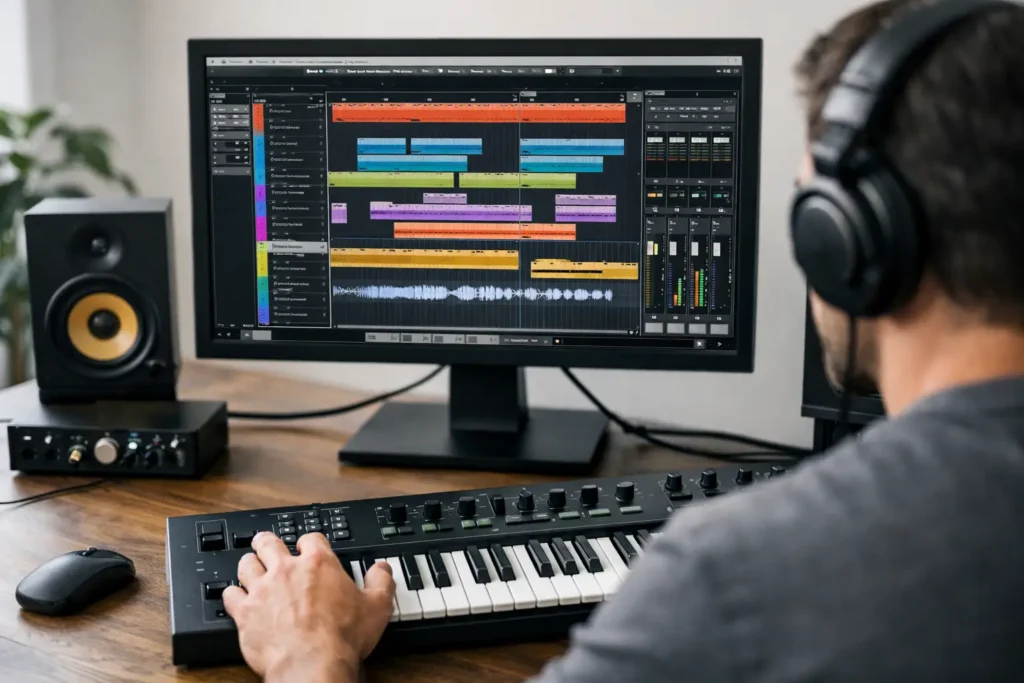
You open Cubase, create a project, and within ten minutes you’re already second-guessing the audio setup, the track types, and whether you just recorded anything at all. That is exactly why people look for Cubase help for beginners in the first place. The problem usually is not talent. It is friction – confusing menus, missing sound, wrong driver settings, and a workflow that feels harder than making music should.
Cubase is powerful, but it does not always hold your hand. That can be a good thing once you know where everything lives. For a beginner, though, the fastest path is not learning every feature. It is getting the core setup right, recording cleanly, and building a repeatable workflow you can trust every time you open a session.
Cubase help for beginners starts with setup
Most early Cubase frustration starts before you record a single note. If your audio interface, driver, or project settings are wrong, everything else feels broken.
Start by checking Studio Setup and Audio Connections. Make sure Cubase is actually using your interface and not your computer’s built-in audio. On Windows, that often means selecting the proper ASIO driver for your interface. If you pick the wrong driver, you may get no sound, high latency, or random playback issues. On Mac, setup is usually simpler, but you still need to confirm the correct device is selected.
Next, look at your sample rate and buffer size. If you are recording vocals or guitar in real time, a lower buffer helps reduce delay in your headphones. If your computer starts clicking, popping, or stuttering, the buffer may be too low. There is always a trade-off here. Low latency feels better when performing. Higher buffer settings are often more stable when mixing with lots of plugins.
Then check your inputs and outputs. In Audio Connections, assign the correct hardware input to the input bus and the correct outputs to your speakers or headphones. A surprising number of beginners arm a track, sing into a mic, and see no signal simply because the input bus was never assigned.
Cubase help for beginners Understand the track types before you build a session
This is where Cubase beginners often lose time. Not every track does the same job, and choosing the wrong one creates confusion fast.
An audio track is for recording microphones, guitars, or any external sound source coming through your interface. A MIDI track is for controlling virtual instruments or external MIDI gear, but it does not contain actual audio. An instrument track combines MIDI control and the virtual instrument in a simpler format, which is usually the better choice for beginners using software synths, drum machines, or sampled pianos.
If you are just starting, keep it simple. Use audio tracks for anything you record with a mic or cable. Use instrument tracks for virtual instruments. That one decision prevents a lot of the classic beginner question: why can I see notes but hear nothing?
Folders, marker tracks, and group tracks matter later, but you do not need a complicated template on day one. Build a session with only what you need and name tracks clearly. Kick, snare, vocal lead, guitar left, bass DI – practical names save time when the project gets crowded.
Cubase help for beginners: How to record without the usual beginner mistakes
Recording in Cubase is straightforward once the signal path is correct. The problem is that there are a few buttons that all have to make sense together.
On an audio track, choose the right input, click record enable, and test your signal. If you want to hear yourself while recording, use monitor carefully. Depending on your interface, you may hear the direct hardware signal, the monitored Cubase signal, or both. If you hear an echo, that usually means direct monitoring and software monitoring are both active.
Set your levels before you hit record. Beginners often record too hot, thinking louder is better. It is not. Leave headroom. Peaks around a safe level are much easier to work with than clipped takes. If your vocal or guitar sounds distorted, fix the interface gain first. Do not try to repair overload later with plugins.
Use the metronome, set a tempo, and create a count-in if needed. Even if you are recording something simple, timing gets easier when the project is organized from the start. If you plan to add drums, loops, or editing later, recording to a steady tempo saves you from unnecessary cleanup.
Cubase help for beginners means learning editing early
You do not need advanced comping or deep audio repair on your first day, but you do need to understand basic editing. That is what turns rough takes into usable tracks.
The main tools worth learning early are split, trim, move, fade, and undo. If a recording starts too early, trim it. If there is noise between phrases, split the event and remove the extra section. If you hear clicks at the start or end of an edit, add short fades. These are basic moves, but they solve a lot.
Quantizing MIDI is another major beginner win. If you record a drum pattern or keyboard part slightly off time, quantize can tighten it quickly. The trade-off is feel. Too much quantizing can make a performance sound stiff. If the part is emotional or human by nature, use just enough correction to improve timing without flattening the groove.
For vocals and live instruments, do not edit just because you can. Clean up what distracts from the performance. Leave alone what gives it character.
Cubase help for beginners: Build a beginner workflow that does not collapse after one session
A lot of people can get through one project by trial and error. The real question is whether they can open Cubase tomorrow and do it again without starting from zero.
That is where workflow matters. Save a basic template with your preferred sample rate, interface routing, click settings, and a few go-to tracks already loaded. Keep your sessions organized in one dedicated project folder so audio files, backups, and exports stay together. Name versions clearly if you make major changes. SongName_v2 is better than guessing which file is current.
Learn key commands gradually. You do not need fifty shortcuts this week. Just pick a few that save time every session, like play, stop, record, undo, split, and zoom. Cubase can be very fast once the basics become muscle memory.
Also, avoid plugin overload. Beginners often think a better mix means more processing. Usually it means better source recording, clearer levels, and fewer bad decisions. Start with volume, pan, and a couple of essential plugins if needed. If you load ten processors on every track before you understand what the raw recording needs, you are making the job harder.
Cubase help for beginners: What beginners usually get wrong about mixing in Cubase
Mixing is where many beginners jump ahead too fast. They start adding EQ, compression, reverb, and mastering plugins before the song itself is balanced.
In Cubase, a solid mix usually starts with gain staging and level balance. Pull up the faders, get the loudness relationship working, and pan things so instruments are not fighting for the same space. You can improve a messy session more with smart balance than with fancy processing.
EQ helps when something is masking another sound, but it is not a magic fix for poor recording. Compression helps control dynamics, but too much can make tracks feel lifeless. Reverb creates space, but too much washes out clarity. Every tool is useful, but only when applied for a reason.
This is one area where beginner expectations need a reset. Professional mixes do not happen because someone found the perfect preset. They happen because the engineer knows what problem they are solving.
Cubase help for beginners: When tutorials stop helping
There is a point where more videos and articles stop moving you forward. You may understand the general idea, but your setup still is not working. Your interface is not talking to Cubase. Your MIDI keyboard is half-configured. Your vocals have latency. Your export sounds different from playback. That is where generic advice runs out.
The truth is, Cubase is not hard because the software is bad. It is hard because your exact combination of computer, interface, plugins, routing, and production goals is unique. That is why personalized support matters. If you are stuck, one real session with an experienced engineer can save hours of confusion and bad habits.
For those who want Cubase help for beginners, results instead of endless trial and error, that kind of direct help is often the difference between owning Cubase and actually using it. That is exactly why services like OBEDIA exist – to help you get unstuck in real time, on your system, with your music.
Start simple. Get your audio working, choose the right track type, record cleanly, and build one reliable workflow. Once those pieces are in place, Cubase starts feeling less like a wall and more like a studio.
We hope you found this article about Cubase help for beginners supportive!