
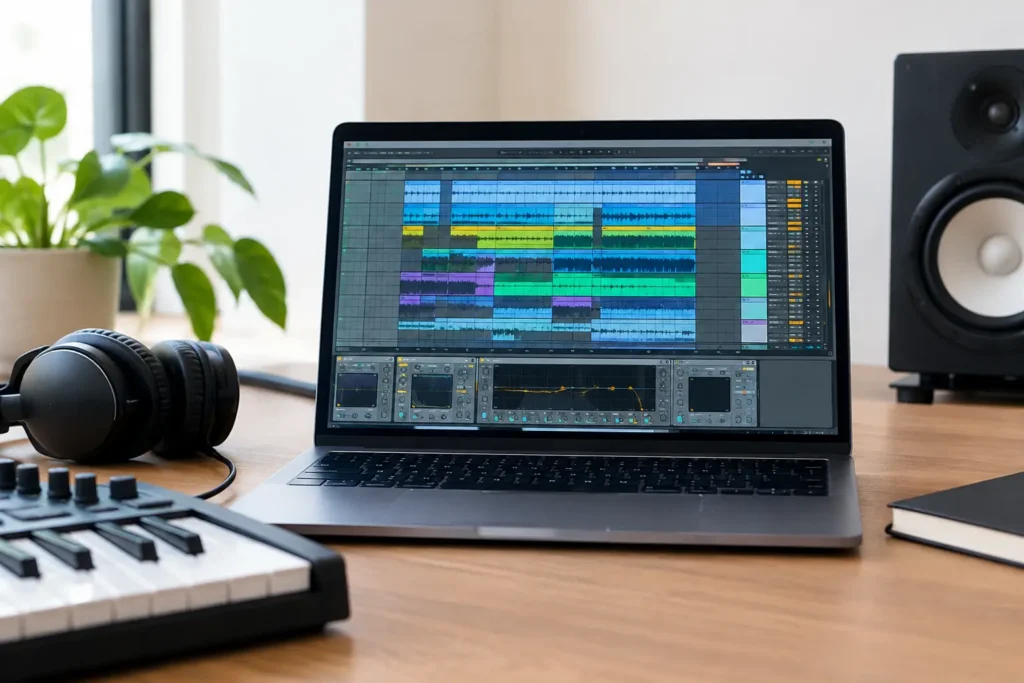
A crowded Ableton Live Set does not just look stressful. It slows decisions down. When you cannot immediately find the vocal bus, identify the kick sample, or tell which synth is feeding a return, you stop producing and start troubleshooting your own work. Learning to organize Ableton Live sessions gives you back the time and focus needed to make better creative calls.
The goal is not to make every Set look pretty for a screenshot. The goal is to open a session tomorrow, next month, or during a mix revision and know exactly what is happening within seconds. That matters whether you are building beats, tracking a band, preparing a live set, or sending stems to a collaborator.
Start with a track naming system you can read at a glance
Generic names such as Audio 23, MIDI 14, and Operator 3 are acceptable for about five minutes. After that, they become a problem. Rename tracks as soon as their role is clear, using names that identify both the sound and its function.
For example, “Kick Main,” “Snare Clap Layer,” “Bass Sub,” “Bass Mid,” “Lead Vox,” and “Vox Double L” are more useful than trying to remember what is inside each track. If a sound changes later, update the name. A track called “Scratch Guitar” should not remain labeled that way after it becomes a final featured part.
Keep names short enough to scan in Arrangement View and Session View. You do not need a full production diary in the track title. Put the essential information first. If you use alternate takes, print versions, or sound-design passes, add a clear suffix such as “_ALT,” “_PRINT,” or “_FX.” Consistency matters more than the exact words you choose.
Organize Ableton Live sessions around groups, not clutter
Groups are one of the fastest ways to make a large Live Set manageable. Instead of treating every track as an independent island, organize by musical role: drums, bass, music, vocals, effects, and reference tracks.
A common arrangement might include a DRUMS group containing kick, snare, hats, percussion, and drum samples; a BASS group with sub and mid-bass layers; a MUSIC group for keys, guitars, synths, and samples; and a VOCALS group for leads, doubles, harmonies, and ad-libs. You can then process and automate each section as a unit while retaining control over the individual tracks.
Do not create groups merely because you can. A three-track song may not need six nested groups. Over-grouping can hide important routing and make a simple session harder to navigate. Create a group when it gives you a practical mixing, arrangement, or navigation advantage.
Once groups are in place, keep related tracks next to each other. Put the main sound before its doubles, layers, or effects prints. Put alternate takes near the source track, not at the bottom of the Set where they will be forgotten.
Use color as a navigation tool
Color is useful when it carries meaning. Pick a basic color system and stick with it across projects. For instance, drums can be red or orange, bass blue, musical instruments green, vocals yellow, effects purple, and reference tracks gray.
The specific colors do not matter. What matters is that your eyes learn the system. When you open a session with 50 tracks, you should be able to spot the vocal section or drum group before reading every name.
Avoid assigning random colors just to make the Set more decorative. If every track has a different color, color stops communicating anything. Use it to identify categories, priorities, or production status.
Clean up routing before mixing starts
Bad routing creates unnecessary confusion later. Before you begin serious mixing, inspect your track inputs, outputs, sends, groups, and return tracks. Make sure audio is going where you think it is going.
Use return tracks for shared effects such as reverb, delay, parallel compression, or creative distortion. This gives related sounds a sense of shared space, reduces repeated plug-in instances, and makes global changes easier. Name returns clearly: “Short Verb,” “Long Verb,” “Vox Delay,” or “Drum Crush” tells you more than Return A and Return B.
If you are printing resampled effects or committing virtual instruments to audio, route those tracks deliberately and label the result. A bounced synth can be named “Pad Print,” while a processed transition may be “Riser FX Print.” This avoids the classic problem of muting a source track, then wondering why its sound is still playing from an unidentified audio track.
Also check for duplicate routing. It is easy to accidentally send a track to a group, then route that group to another group, then apply processing in multiple places without realizing it. There is no universal rule against complex routing, but every stage should have a purpose you can explain.
Build templates for the work you repeat
A template is not a shortcut for creativity. It is a shortcut for repetitive setup work. If you regularly start songs with the same core routing, groups, returns, monitoring setup, and reference-track channel, save that structure as an Ableton Live template.
Your template might include labeled groups, preconfigured return effects, a dedicated reference channel with its output routed away from your master processing, and a few commonly used MIDI or audio tracks. It can also include a basic gain-staging approach so you are not beginning every production with channels clipping into the red.
Keep templates lean. Loading 40 plug-ins and 90 tracks before you have written a note can make Live slower and encourage you to force every idea into the same sound. A useful template handles the boring infrastructure while leaving room for the record to become its own thing.
If you produce in different contexts, create separate templates. A beat-writing template, vocal recording template, mixing template, and live-performance template should not all be the same Set. Each task has different priorities.
Keep samples, recordings, and project files together
Ableton Live projects become fragile when audio files are scattered across Downloads, external drives, old desktop folders, and random sample locations. You may be able to open the Set today, but a missing-file warning can stop a revision session cold months later.
Create a dedicated project folder for each song. Save the Live Set there from the beginning, then use Live’s project-management tools to collect and save external media when the project reaches an important milestone. This is especially important before moving to another computer, sending a project to a collaborator, or archiving it to backup storage.
Name the project folder clearly. “New Song Final Final 2” is not a system. Use a format you can sort and understand, such as “Artist – Song Title – 2026-10-17” or “Song Title – Production.” Then use meaningful version names inside it: “Song Title_v01,” “Song Title_v02_VocalEdit,” and “Song Title_v03_MixPrep.”
Versioning protects creative decisions. Save a new version before major edits, comping sessions, arrangement overhauls, mix changes, or client revisions. You can always remove old versions later. You cannot recover an arrangement you overwrote because you assumed you would remember what you changed.
Create a clear workflow for takes and ideas
Session View is excellent for generating ideas, but it can become a storage unit for abandoned clips. When a writing session is over, decide what each clip is: active, alternate, unused, or ready to arrange. Rename the clips that matter and delete obvious dead ends.
For recorded vocals and instruments, keep takes organized by performer and section. Rather than placing every vocal pass on a dozen unlabeled tracks, use a clear system such as “Lead Vox Takes,” “Lead Vox Comp,” and “Lead Vox Print.” Once you comp a performance, preserve the raw takes until the project is truly approved. That gives you a way back if a producer, artist, or client wants a different phrase later.
Add locators in Arrangement View for song sections and work areas: Intro, Verse 1, Chorus, Break, Mix Notes, and so on. Locators are simple, but they make long sessions dramatically easier to navigate. They are also useful when discussing revisions with another person during a remote session.
Leave notes for your future self
The person opening the Set later may be you after two weeks of other projects. Leave useful notes while the decisions are fresh. Note why a track is muted, which vocal line still needs tuning, whether a plug-in should be replaced, or what feedback remains unresolved.
Keep notes actionable. “Fix mix” is vague. “Lead vocal feels harsh around upper mids in chorus” gives you a real starting point. If a session is heading to mixing, note any intentional roughness or production choices that should not be accidentally polished away.
A well-organized Live Set will not write the song for you. It will, however, remove the technical friction between an idea and a finished record. If your sessions are already difficult to navigate, do not spend another night guessing at routing or hunting for takes. A live one-on-one session with an experienced OBEDIA engineer can help you build a workflow that fits your exact Ableton setup and the way you actually make music.