
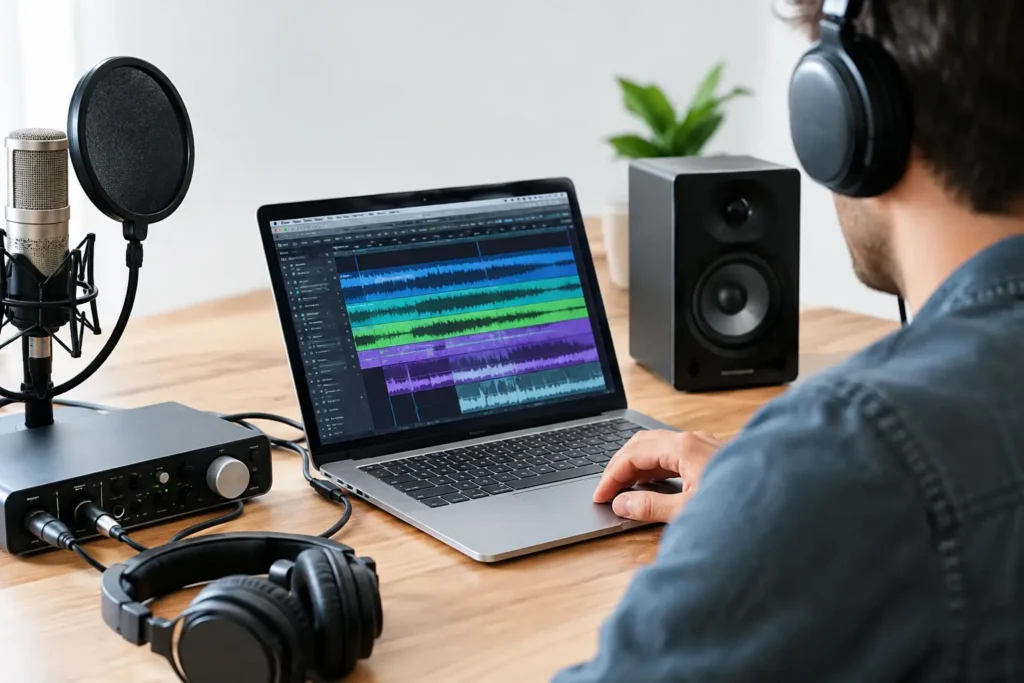
A great microphone and a capable computer will still feel broken if the driver between your DAW and audio interface is wrong. Finding the best audio drivers for recording is not about downloading every driver utility you can find. It is about using the correct driver for your operating system, interface, and recording workflow – then configuring it well enough to track without delay, clicks, or random dropouts.
For most home studio users, the answer is simpler than the internet makes it sound: use the current driver from your audio interface manufacturer. On a Mac, that often means Core Audio support built into the interface. On Windows, it usually means the interface maker’s dedicated ASIO driver.
What Audio Drivers Actually Do
An audio driver is the communication layer between your recording software and your hardware. It tells Pro Tools, Studio One, Cubase, Ableton Live, or another DAW how to send audio into and out of your interface.
That sounds basic, but the driver directly affects whether you can hear yourself while recording without a distracting delay. It also affects how many tracks and plug-ins your system can play before it produces pops, crackles, or error messages.
Your DAW does not need a separate driver for every project. The driver belongs to the operating system and audio interface. If your DAW cannot see your inputs, gives you only one microphone choice, or plays through laptop speakers instead of your interface, the problem is often driver selection or device configuration.
Best Audio Drivers for Recording on Windows
Manufacturer ASIO drivers are the first choice
For serious recording on Windows, a dedicated ASIO driver from the manufacturer of your audio interface is usually the right answer. Focusrite, Universal Audio, PreSonus, RME, MOTU, Audient, Steinberg, Antelope Audio, and other established interface makers provide drivers designed for their own hardware.
ASIO gives the DAW direct, efficient access to the interface. Compared with generic Windows audio paths, that normally means lower latency, more reliable input and output routing, and better performance at smaller buffer settings.
If you own a USB interface and are recording vocals, guitar, MIDI instruments, or multiple microphones, install the current ASIO driver from the interface manufacturer. Then select that driver inside your DAW’s audio device settings. Do not assume Windows selected it automatically.
The trade-off is that ASIO drivers are device-specific. You generally cannot combine several unrelated interfaces into one clean ASIO setup. If you connect a USB mic, a separate interface, and Bluetooth headphones, you are creating a routing problem before you press Record. Use one primary interface for input and monitoring whenever possible.
Where ASIO4ALL fits – and where it does not
ASIO4ALL can help when a Windows computer has no dedicated audio interface driver available. It is a wrapper that can provide an ASIO-style connection for built-in sound hardware and some unsupported devices.
It can be useful for basic songwriting, MIDI programming, or learning a DAW with a laptop headphone jack. It is not the first choice for a stable recording rig when your interface has its own official ASIO driver. Running ASIO4ALL on top of an interface that already has a proper driver can create confusion, missing inputs, and conflicts between devices.
If you are relying on ASIO4ALL because your interface driver will not install or your DAW cannot find the hardware, solve the underlying issue. That may mean updating the driver, changing the USB cable or port, removing an outdated driver version, or checking whether the interface is supported by your version of Windows.
Best Audio Drivers for Recording on Mac
Core Audio is usually all you need
macOS uses Core Audio, Apple’s professional audio architecture. Many modern class-compliant interfaces work directly with Core Audio without requiring a separate driver installation. Connect the interface, select it in your DAW, set the sample rate and buffer size, and you can begin recording.
Some manufacturers still provide optional control software, mixers, firmware tools, or drivers for advanced routing and hardware features. Install those only when the manufacturer recommends them for your exact interface and macOS version. A driver made for an older operating system can cause more trouble than it solves.
Core Audio is not a lesser option than ASIO. It is the native professional audio path on Mac, and it is used every day in commercial rooms and home studios alike. The better question is whether your interface, operating system, and DAW are all running compatible versions.
Aggregate devices have a purpose, but add risk
Mac users can create an Aggregate Device to combine multiple interfaces or inputs. This can be helpful if you need extra channels for a temporary session. It can also introduce clocking issues, drift, inconsistent latency, and difficult troubleshooting.
For a reliable vocal session or client recording, use one interface whenever possible. Aggregate devices are a workaround, not a default studio workflow.
Driver Choice Is Only Half the Latency Problem
A good driver does not guarantee low-latency recording if the buffer is set too high. Buffer size determines how much audio your computer processes at one time. A larger buffer gives the computer more breathing room. A smaller buffer reduces the delay you feel while tracking.
For recording vocals or playing software instruments, start around 64 or 128 samples. If the session clicks, pops, or overloads, move to 256 samples and reduce CPU-heavy plug-ins. For mixing, where real-time performance is less critical, 512 or 1024 samples is often completely reasonable.
The right setting depends on your computer, interface, session size, sample rate, and plug-ins. A producer tracking one vocal over a two-track beat has different needs than an engineer recording 24 inputs at 96 kHz. There is no heroic buffer setting that works for every project.
Also remember that plug-ins can create latency even when the driver is working perfectly. Look-ahead limiters, linear-phase EQs, oversampling processors, and some mastering chains can make a session feel delayed. Disable or bypass those during tracking, then bring them back for mixing.
Set Up Your Driver Before You Start Recording
Once the correct driver is installed, confirm the fundamentals before a session. In your DAW, select the interface’s ASIO driver on Windows or the interface through Core Audio on Mac. Set both the DAW and interface to the same sample rate, such as 44.1 kHz or 48 kHz.
Next, confirm the input and output paths. Your microphone should appear on the physical input where it is connected, and your monitors or headphones should be assigned to the interface outputs. If you see signal on the interface but not in the DAW, check the DAW’s input configuration rather than reinstalling everything immediately.
If your interface includes direct monitoring, learn how it works. Direct monitoring sends your input signal to headphones before it travels through the computer, which can eliminate the feeling of latency for vocals and instruments. The trade-off is that you may not hear DAW plug-ins, such as amp simulation or vocal effects, in the monitored signal unless the interface supports software cue mixes or DSP processing.
When Your Driver Keeps Failing
Intermittent audio problems are rarely fixed by changing random settings. Start with the simplest checks: restart the computer, power-cycle the interface, use a known-good USB cable, and connect directly to the computer instead of a hub. Then verify that your DAW is using the intended driver and that no other audio application has taken control of the device.
On Windows, disable system sound notifications through the recording interface and avoid switching audio devices while the DAW is open. On either platform, update interface firmware only when the manufacturer specifically supports your operating system and model. Do not update your operating system in the middle of an important project without confirming compatibility first.
If your DAW crashes only with one interface connected, if inputs disappear after an update, or if latency changes from session to session, you need a methodical diagnosis. The answer may be a driver version, a USB power issue, a sample-rate mismatch, or a plug-in problem that only looks like a driver problem.
That is where a live screen-share session can save hours. OBEDIA’s one-on-one engineers can look at the actual interface, driver panel, DAW settings, routing, and project behavior instead of asking you to guess from a generic tutorial.
The best driver is the one that lets your system stay stable while you make music. Get the correct manufacturer driver or native Core Audio connection in place, set a realistic buffer, and spend your next session recording performances instead of troubleshooting menus.