
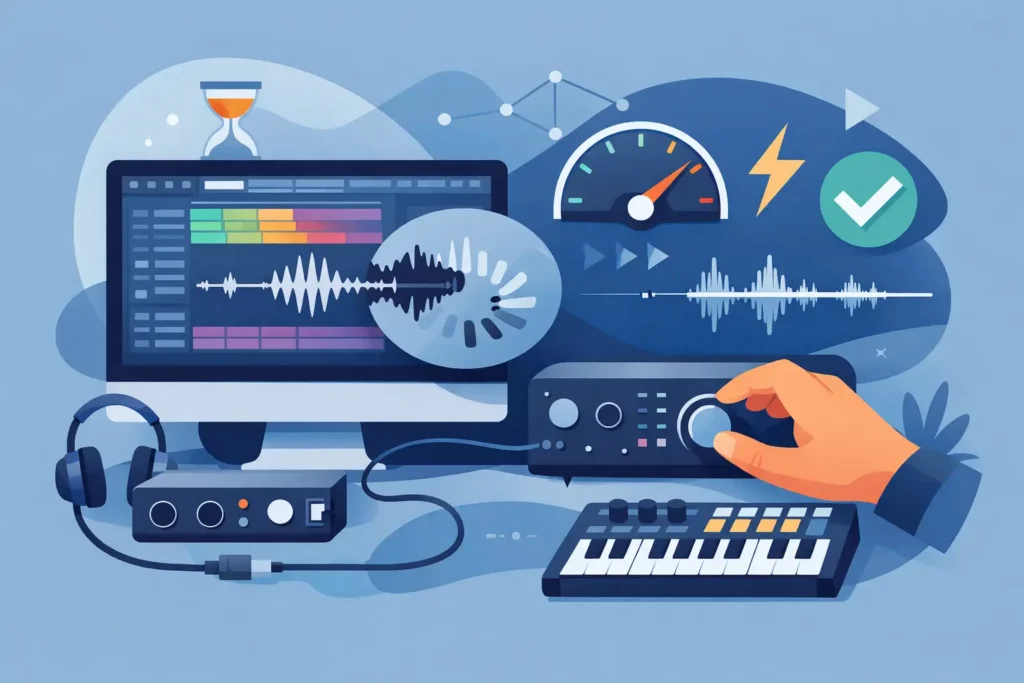
You hit record, play a note, and hear it back a split second later. That tiny delay is enough to wreck a vocal take, throw off a drummer, or make a MIDI performance feel disconnected. If you are searching for how to fix latency in daw setups, the good news is this: latency is usually not one mystery problem. It is a chain of small settings and hardware choices that can be identified and corrected.
Most home studio users lose time because they treat latency like a software glitch. In reality, your DAW, audio interface, driver, sample rate, buffer size, plugins, and monitoring path all work together. If even one part of that chain is wrong, the whole session feels sluggish. The fastest fix starts with understanding which kind of latency you are actually hearing.
What latency actually means in a DAW
Latency is the delay between an input and when you hear or process that signal. In a DAW, it usually shows up in three places: while recording audio, while playing virtual instruments, or during playback when a session is overloaded.
Input latency happens when your microphone, guitar, or keyboard goes into the interface, through the computer, into the DAW, and back out to your headphones or speakers. Output latency affects what you hear on playback. Round-trip latency is the full trip in and back out, and that is the number performers feel most.
A lot of users assume any delay means the computer is too slow. Sometimes that is true. More often, the DAW is simply set up for mixing instead of tracking.
How to fix latency in DAW recording sessions
The first place to look is buffer size. If you are tracking at 512 or 1024 samples, you are asking the computer to process larger chunks of audio before sending them back. That helps stability in heavy sessions, but it also increases delay. For recording, lower the buffer to 32, 64, or 128 samples if your system can handle it.
The trade-off is simple. Lower buffer settings reduce latency but increase CPU demand. Higher buffer settings reduce CPU strain but increase delay. There is no one perfect setting for every stage of production. Tracking and mixing usually need different buffer choices.
Next, check your audio driver. On Windows, an ASIO driver from the interface manufacturer is usually the right answer. Generic drivers often create unnecessary latency and unstable performance. On Mac, Core Audio is standard, but the interface still needs to be configured correctly in the DAW.
If you are using built-in computer audio instead of a dedicated interface, expect higher latency. Consumer sound devices are not designed for real-time music production. A proper audio interface with stable drivers is one of the biggest upgrades you can make if your current setup feels slow.
Use direct monitoring when it makes sense
Many interfaces include direct monitoring, which lets you hear the input before it passes through the DAW. That can make latency feel almost nonexistent during recording. If you are cutting vocals, guitar, bass, or spoken word, direct monitoring is often the quickest fix.
The limitation is that direct monitoring bypasses some DAW processing. If the singer wants to hear a chain of real-time plugins, or if you are recording through an amp sim, you may still need low-latency DAW monitoring instead. This is where setup matters. You are choosing between lowest delay and most software processing, and sometimes you cannot get both at the same time.
Turn off what you do not need while tracking
Heavy plugins are a common reason sessions suddenly feel delayed. Linear phase EQs, lookahead limiters, convolution reverbs, oversampling, and some mastering processors can add serious latency. They may sound great in a mix, but they are not built for real-time tracking.
If your DAW has a low-latency mode, use it. Most major DAWs offer some version of this feature. It temporarily bypasses or compensates for plugins that create too much delay. If there is no dedicated mode, manually disable high-latency processors while recording.
Also watch your master bus. A lot of users build a nice loud monitoring chain for playback, then forget that the limiter or processor on the stereo output is making live input feel late. Remove anything nonessential from the master while tracking.
How to fix latency in DAW MIDI and virtual instrument workflows
MIDI latency feels especially frustrating because the performance itself is often tight, but the instrument responds late. In many cases, the fix is the same: lower the buffer size. Virtual instruments need fast response, and a high buffer can make even a powerful keyboard feel disconnected.
But MIDI setups introduce a few extra variables. Wireless MIDI devices can add delay. Older USB hubs can create inconsistent timing. Poorly optimized sample libraries can increase load times and responsiveness problems. If one instrument feels delayed and another does not, the issue may be that plugin rather than the entire DAW.
Sample rate can matter too. Higher sample rates can reduce latency slightly because audio is processed in smaller time slices, but they also increase CPU use. Moving from 44.1 kHz to 96 kHz is not a magic fix. On some systems it helps, on others it makes stability worse. If your computer is already struggling, raising the sample rate may create clicks and dropouts instead of solving anything.
Freeze, print, or disable tracks
If your session is packed with synths, samplers, and effects, the cleanest move is often to reduce the workload. Freeze tracks. Print virtual instruments to audio. Disable instruments you are not actively using. This gives the CPU room to run your live input at a lower buffer.
That is a practical studio move, not a compromise. Professionals do it every day because responsiveness matters more than keeping every option open in real time.
Common latency mistakes that waste hours
One of the biggest mistakes is monitoring the same signal twice. For example, you might hear the direct monitor signal from the interface and the software-monitored signal from the DAW at the same time. That creates a doubled sound that feels like latency, even if the DAW is running fairly well. Choose one monitoring path and stick with it.
Another common issue is plugin delay compensation confusion. Delay compensation helps tracks stay aligned during playback, but it can make live monitoring harder if heavy plugins are active. If your recorded audio lines up correctly on the grid but still feels delayed in the headphones, that points more toward monitoring latency than a timing error in the recorded file.
USB connection issues also get overlooked. Plugging an audio interface into a crowded hub, using the wrong cable, or sharing bandwidth with multiple high-demand devices can affect performance. Whenever possible, connect the interface directly to the computer using the recommended port type.
Power settings matter too, especially on laptops. If the computer is set to battery saver or a low-performance mode, audio processing can become inconsistent. Use a high-performance power profile when recording and close background apps that are fighting for CPU and disk access.
A fast troubleshooting order that actually works
If you want results without chasing random fixes, troubleshoot in order. Start by lowering the buffer. Then confirm you are using the correct interface driver. After that, disable heavy plugins and check whether direct monitoring is available. Finally, test the session with fewer active tracks and devices.
This matters because you need to isolate the cause. Changing ten things at once might accidentally improve the problem, but you will not know what actually fixed it. Good troubleshooting is controlled, not chaotic.
If the latency only happens in one project, the session itself is likely overloaded or misconfigured. If it happens in every project, the issue is probably driver, hardware, or system-level setup. That distinction saves a lot of wasted time.
When the problem is not your DAW
Sometimes the DAW gets blamed for problems created elsewhere. Bluetooth headphones are a perfect example. They add too much delay for real-time tracking, no matter how well the DAW is configured. If you are recording, use wired headphones.
Display-heavy systems can also introduce strain. High-resolution monitors, background sync utilities, antivirus scans, cloud backup services, and browser tabs can all compete for resources. You may still be able to mix with that environment, but tracking is less forgiving.
And yes, sometimes the real issue is that the interface or computer is simply not suited for the session you are running. There is only so much optimization you can do before the hardware becomes the bottleneck.
A good DAW setup should feel responsive enough that performance comes first and technology stays out of the way. If you have tried the practical fixes and your system still fights you, that usually means the problem is specific to your exact combination of DAW, interface, drivers, plugins, and workflow. That is where real one-on-one help makes a difference. At OBEDIA, this is the kind of issue we solve every day in live sessions with musicians and producers who are tired of guessing. The right fix is the one that works on your system, right now, so you can get back to making music instead of troubleshooting it.