
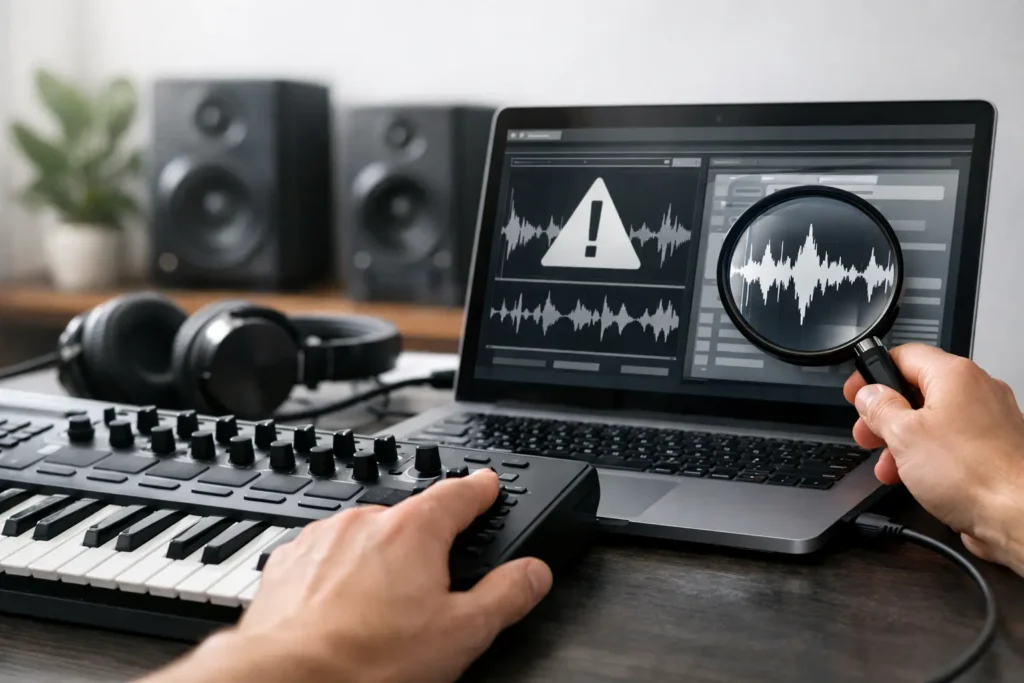
Your MIDI keyboard lights up, the DAW is open, and somehow nothing happens. Or worse, everything happens – stuck notes, wrong sounds, random knobs firing off commands you never assigned. This is exactly why musicians end up searching for midi controller troubleshooting online. The problem usually is not the controller alone. It is the controller, the computer, the DAW, the driver, the cable, the USB bus, and the setup decisions made along the way.
The good news is that most MIDI controller problems are fixable without replacing gear. The bad news is that generic advice often wastes an hour before you find the real cause. If you want results, you need to troubleshoot in the same order a working engineer would.
MIDI controller troubleshooting online starts with signal path
When a controller stops working, people often jump straight into DAW settings. That is sometimes right, but not always. First confirm the controller is powering on properly and communicating with the computer at all.
If your controller is bus-powered, start with the simplest variable – the USB connection. Try a different cable first. Bad USB cables cause more MIDI headaches than most users realize, especially older cables that still pass power but fail on data. Then try a different USB port. If you are using a hub, remove it from the chain for now. Hubs can work fine, but they also introduce another possible failure point, especially with power-hungry devices.
Next, check whether the operating system sees the device. On Mac, look in Audio MIDI Setup. On Windows, check Device Manager and your DAW’s MIDI device list. If the computer does not see the controller, the issue is below the DAW level. That points to power, driver, cable, firmware, USB conflict, or hardware failure.
If the computer sees it but the DAW does not, now you are looking at software configuration. That is a much better problem to have because it usually means the hardware is alive.
The most common MIDI controller issues and what they usually mean
A controller that powers on but sends no notes often comes down to one of three things: the wrong input is enabled in the DAW, the track is not record-armed or monitoring input, or the controller is transmitting on a MIDI channel the instrument is not listening to. Beginners run into this constantly, but advanced users do too when switching templates or using older hardware.
If your pads or keys trigger the wrong sounds, the issue is usually mapping, not failure. Drum pads may be sending notes that do not match the drum instrument layout. Faders and knobs may be assigned through a previous template or control surface profile. This happens a lot in Ableton Live, Logic Pro, Cubase, Studio One, and Pro Tools when users mix MIDI learn functions with built-in controller integration.
If you get stuck notes, double triggers, or delayed response, pay attention to buffer size, USB traffic, and MIDI loop problems. Latency is not always an audio interface issue. Sometimes a controller is sending extra data, aftertouch, clock, or continuous controller messages that flood the system. Other times the DAW is echoing MIDI back to the device in a way that creates a loop.
Intermittent connection is where troubleshooting gets more specific. If the controller works for ten minutes and then disappears, suspect power management settings, sleep settings, unstable hubs, or outdated firmware. On Windows systems in particular, USB power saving can quietly disconnect devices that appear idle.
How to isolate the problem fast
The fastest path is isolation, not guessing. Strip the setup down until only one thing can be wrong.
Start with the controller connected directly to the computer. Open a blank session in the DAW instead of a large template. Load a single virtual instrument. Enable only that controller as an input. Test notes, mod wheel, sustain pedal, knobs, and pads one by one.
If that works, the problem is likely in your main session, template, routing, or control assignments. If it still fails, test the controller in another DAW or MIDI monitor utility. This tells you whether the device is sending data at all. If the MIDI monitor shows note data but your DAW does not respond, your DAW setup is wrong. If the MIDI monitor shows nothing, the problem is at the device, cable, driver, or OS level.
This is where many musicians lose time online. They search one symptom at a time instead of isolating variables. That leads to ten browser tabs, five half-relevant forum posts, and no finished track.
DAW-specific setup matters more than people think
MIDI is a standard, but DAWs do not handle controller setup in the same way. That is why blanket advice only gets you so far.
In Studio One, you may need to add the controller both as a keyboard device and, if applicable, as an external control device. In Pro Tools, MIDI input filtering, instrument track setup, and controller definitions can all affect response. In Logic Pro, control surfaces can auto-detect in ways that help or confuse, depending on the device. In Cubase, remote devices, MIDI port setup, and track input routing need to line up. In Ableton Live, the Track, Sync, and Remote switches for each MIDI port can make the difference between a controller that plays instruments and one that only half works.
That is the trade-off with modern production software. You get deep control, but you also get more places for one setting to break the chain.
Drivers, firmware, and class-compliant myths
A lot of users hear that a controller is class-compliant and assume no software support is ever needed. Sometimes that is true. Sometimes it is only partly true.
A class-compliant device may still behave better with the manufacturer’s control software, editor, or firmware updater. Some features – transport controls, advanced mapping, display feedback, pad banks, custom zones – may depend on software utilities even if basic note input works without them.
Firmware is another overlooked issue. If a controller has known bugs with a certain OS version or DAW update, no amount of menu clicking will fix it. On the other hand, updating firmware without checking compatibility can create new problems, especially in older studio systems built to stay stable. It depends on your setup. If your rig is mission-critical and mostly working, update with a plan, not out of habit.
Why midi controller troubleshooting online often stalls out
Online troubleshooting is useful up to a point. It can help you identify patterns, check common settings, and rule out obvious mistakes. But most MIDI problems are setup-specific. Your controller model, operating system, DAW version, interface, hub, session template, and routing choices all interact.
That is why one person’s fix rarely transfers cleanly to another person’s rig. A forum answer that solved an Akai issue on Windows 10 in Ableton may be irrelevant for an Arturia controller on macOS running Logic. Even when the symptom looks identical, the underlying cause can be different.
This is also why real-time support saves so much time. An experienced engineer can watch the signal chain, inspect preferences, verify routing, and test the setup while you are there. Instead of collecting theories, you get an answer tied to your actual system.
A smarter checklist for MIDI controller troubleshooting online
If you want to solve the issue before it kills your session, work in this order: confirm power, swap cable, change USB port, remove hubs, verify OS detection, check driver and firmware status, test in a blank DAW session, confirm track input and monitoring, check MIDI channel and mapping, then test in a second app or MIDI monitor.
That order matters. It keeps you from wasting time inside the DAW when the computer does not even see the device, and it keeps you from blaming hardware when the real issue is one unchecked input setting.
If you use templates, save a known-good diagnostic template with one instrument track and one controller assigned. That way, when something breaks, you can compare a clean environment against your full production setup. It is a simple move, but it saves real time.
And if your problem involves multiple devices, do not troubleshoot them all at once. Disconnect everything except the controller you are testing. Add devices back one at a time. MIDI rigs fail in layers.
When to stop guessing and get help
There is a point where more searching stops being productive. If you have already tested cables, ports, OS detection, DAW input, and a blank session, and the behavior still makes no sense, you likely need eyes on the system. That is especially true if the issue appears only in one project, only after sleep mode, only with one plugin, or only when multiple controllers are attached.
This is where one-on-one remote support makes a real difference. OBEDIA works with exactly these problems every day – not just explaining what MIDI is, but getting your controller, DAW, and workflow functioning again in the real world.
The main thing to remember is simple: a broken MIDI setup is usually not a dead end. It is a chain with one weak link. Find that link methodically, and you get back to making music instead of troubleshooting it.